transition
Description
The transition command changes SOLIDWORKS PDM files from one workflow state to another using a specified transition.
This command supports three modes:
- Batch transition using CSV source (recommended for large migrations)
- Search-based transition
- Single file transition
Syntax
# transition
transition -transitionidorname <id-or-name> -filePath <path> [-mode simple|references]
# transition
transition -transitionidorname <id-or-name> -search <pattern> [-recursive] [-mode simple|references]
# transition
transition -source <csv> -password <password> [-batch <size>] [-comment <text>]
Parameters
transitionidorname
Specifies the workflow transition ID or name. Required for search and filepath modes.
Example:
-transitionidorname 12
source
Specifies a CSV file containing files to transition in batch.
The CSV may be:
- Absolute path
- Relative to current directory
Example:
-source transitions.csv
Important
The file must be locally cached.
password
Specifies the PDM user password required to execute the transition.
Only used with source parameter.
Example:
-password mypassword
Important
Your password remains visible in your session output. Do not start PDMShell with winlog parameter.
batch
Specifies how many files to process per batch.
Default: 1000 Example:
-batch 5000
Recommended values: 500
comment
Specifies the transition comment.
Default:
Transitioned by PDMShell
Example:
-comment "Released by migration script"
mode
Optional. Controls whether direct file and search transitions use simple mode or reference mode.
Allowed values:
simple: transitions only the selected file. This is the default.references: transitions the selected file and references according to SOLIDWORKS PDM transition behavior.
Example:
-mode references
This parameter applies to filePath and search mode. CSV source mode uses the PDM batch transition reference settings described below.
search
Searches for files matching a pattern in the current directory.
Example:
# transition
-search %.sldprt
recursive
Includes subfolders when used with search.
filePath
Specifies a single file to transition.
Example:
# transition
-filePath part.sldprt
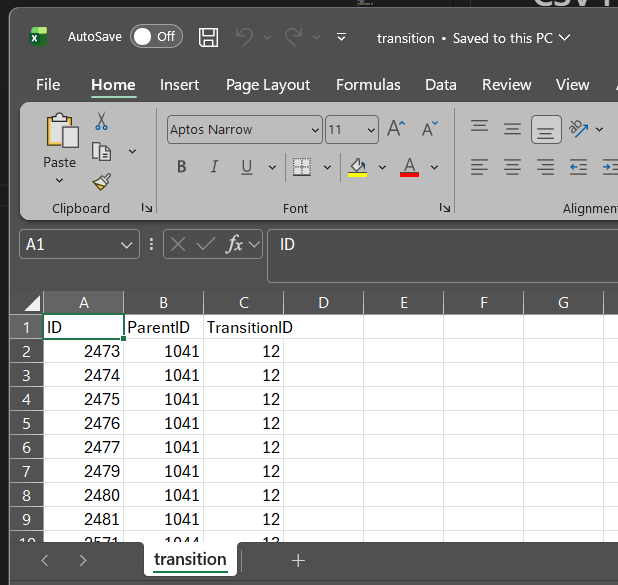
CSV Format
Required format:
FileID,ParentFolderID,TransitionID
Example:
FileID,ParentFolderID,TransitionID
34521,1201,15
34522,1201,15
34523,1205,18
Batch Mode
This is the recommended mode for:
- Data migrations
- Vault cleanup
- Bulk state changes
- Automation
Supports hundreds of thousands of files.
Example:
transition -source transitions.csv -password mypass -batch 2000
Important Considerations For Batch Mode
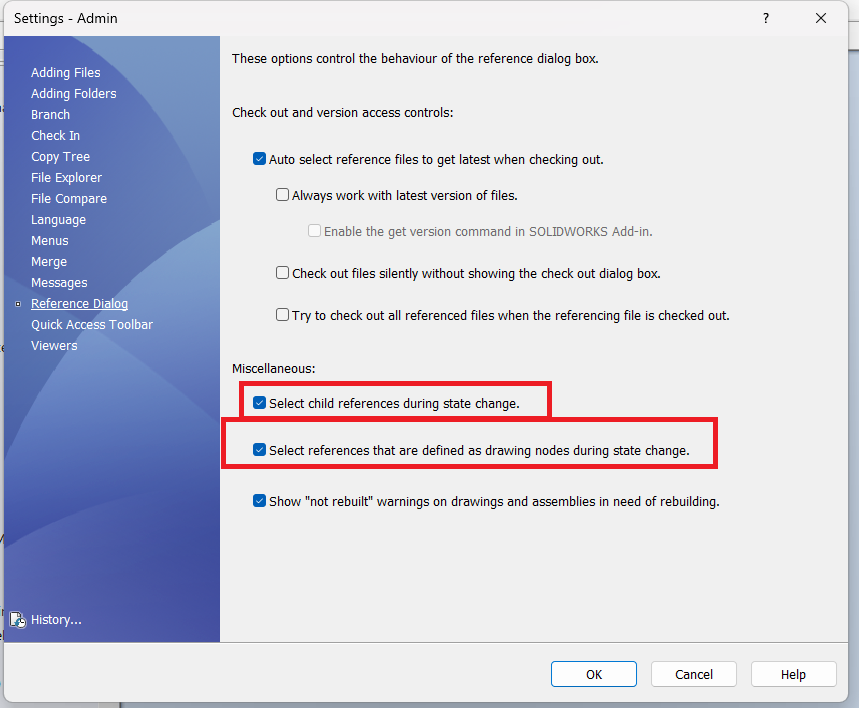
PDMShell batch transitions are affected by the logged-in user’s Reference Dialog settings. If “Select child references during state change” and “Select references that are defined as drawing nodes during state change” are enabled, PDM will also transition referenced files, not just the source files from the CSV. If you want PDMShell batch mode to transition only the source files, these options must be disabled for the logged-in user.
Search Mode
Transitions files found using search.
Example:
transition -search %.sldasm -transitionidorname 12 -recursive
Transition search results with references:
transition -search %.sldasm -transitionidorname 12 -recursive -mode references
Single File Mode
Transitions one file.
Example:
transition -filePath part.sldprt -transitionidorname 12
Transition one file with references:
transition -filePath part.sldprt -transitionidorname 12 -mode references
Validation
The command automatically:
- Validates transition IDs
- Validates workflow permissions
- Validates file state eligibility
- Skips invalid files
License Limitations
Free version limits number of files processed.
To remove limit: https://bluebyte.biz/product/pdmshell
Best Practices
- Use source mode for large operations.
- Use batch size between 500 and 5000.
- Always test with small batch first.
- Backup vault before large operations.
Availability
Available since PDMShell 2.0.0.
Updated in PDMShell 4.0.21 with mode for direct file and search transitions.