Manage PDMShell add-in licenses
PDMShell add-in licenses can be managed from the SOLIDWORKS PDM Administration Tool. Use this page when the add-in is installed in a vault and you need to choose how the vault consumes PDMShell licenses.
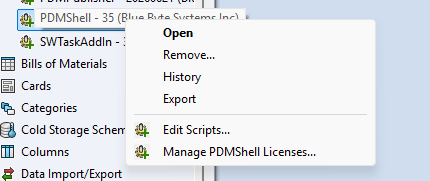
Open the Administration Tool, expand the vault, open the add-ins list, locate the PDMShell add-in, right-click it, and select Manage PDMShell Licenses.
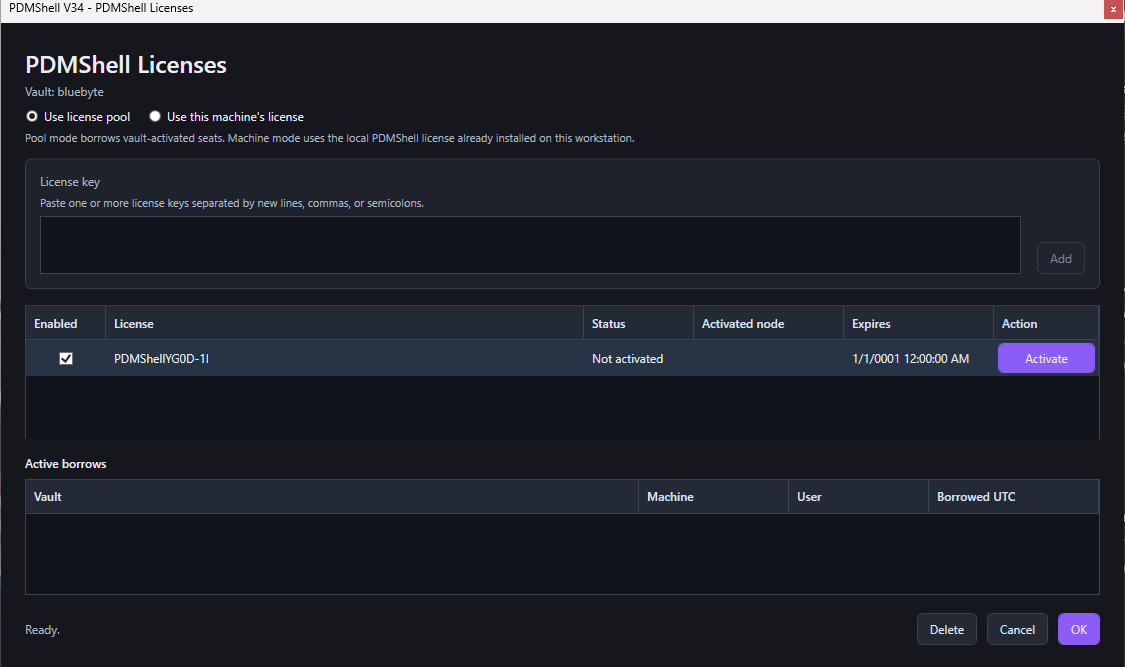
The PDMShell Licenses window opens for the selected vault. Use this window to add license keys, activate pooled keys, choose the license mode, and review active pool borrows.
License mode
The top of the window controls how the vault uses PDMShell licenses.
Use license poollets the vault borrow from activated license keys stored in the vault.Use this machine's licenseuses the local PDMShell license already installed on the current workstation.
For help choosing a mode, see License pool and machine licenses.
Add license keys
Paste one or more PDMShell license keys in the License key box. You can separate keys with new lines, commas, or semicolons.
Select Add to add the keys to the vault license list.
License list
The license list shows the keys available to the vault.
| Column | Meaning |
|---|---|
| Enabled | Controls whether the key can be used by the add-in. |
| License | Shows the stored license key. |
| Status | Shows whether the key is activated and ready to use. |
| Activated node | Shows the node or machine that activated the license. |
| Expires | Shows the license expiration date. |
| Action | Lets an administrator activate a license key when activation is required. |
Active borrows
The Active borrows list shows pool seats currently borrowed from the vault. It includes the vault, machine, user, and borrowed time in UTC.
Use this area to understand who is currently consuming pool seats.
Window controls
Use the buttons at the bottom of the window to finish or discard changes.
| Button | Meaning |
|---|---|
| Delete | Removes the selected license key from the vault license list. |
| Cancel | Closes the window without saving pending changes. |
| OK | Saves the selected license mode, enabled license keys, added keys, removed keys, and other pending license changes. |
Use the Activate button in the license list when a license key is present but not activated.