Edit Command Settings
When you select an action, the command details area shows the settings for that command.
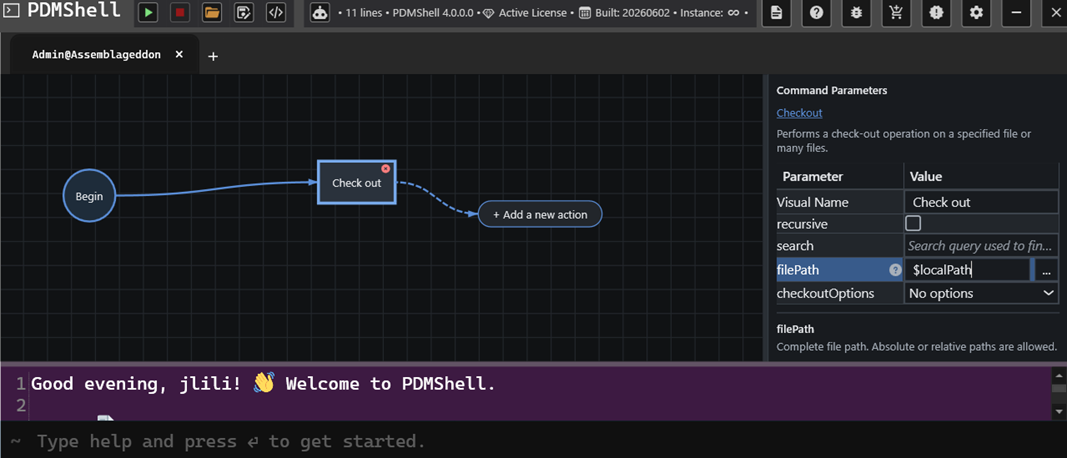
The details area includes:
- A visual name for the action.
- Command settings such as
filePath,search,recursive, and command-specific options. - A short description for the selected setting.
- Browse buttons for file and folder settings when available.
Visual Name
The visual name is the text shown on the action in the workflow.
Use short names that explain the step:
Find PDFsCheck out filesSet revisionNotify user
The visual name is only for readability. PDMShell still uses the real command and command settings when it runs the workflow.
Command Settings
Command settings map to the same parameters used in the command reference.
For example, a checkout action may need either:
filePathfor one file.searchfor matching files.
Some commands also support optional settings such as recursive, columns, comment, or csv.
Browse Buttons
Some settings include a browse button. Use it to select files, folders, scripts, or other values without typing the full path manually.
Validation
The Visual Code Editor validates actions while you build the workflow.
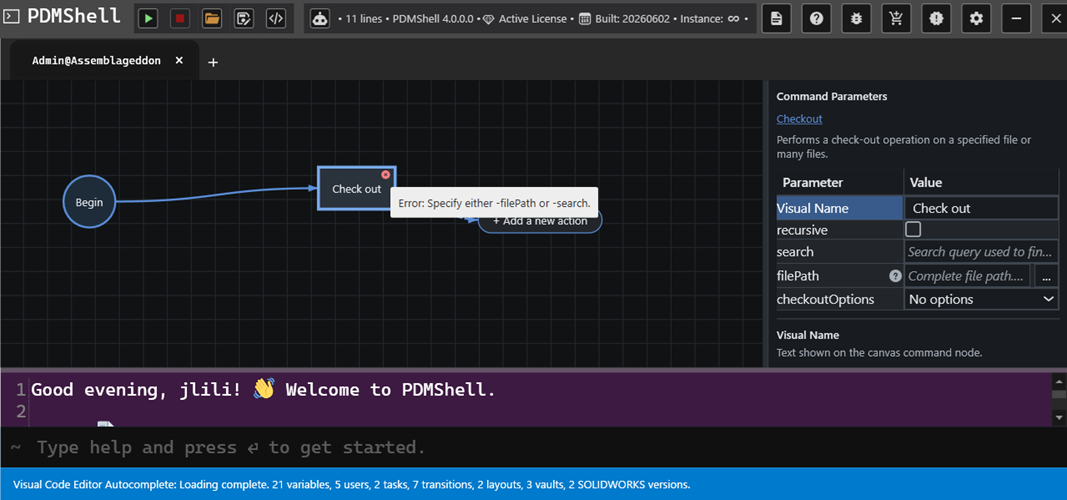
If a required setting is missing or two settings cannot be used together, the action shows a warning or error. Select the action to review the message and correct the settings.
For example, checkout requires either filePath or search. If neither is set, the editor reports:
Specify either -filePath or -search.
Validation helps catch common mistakes before the workflow runs.