License Activation
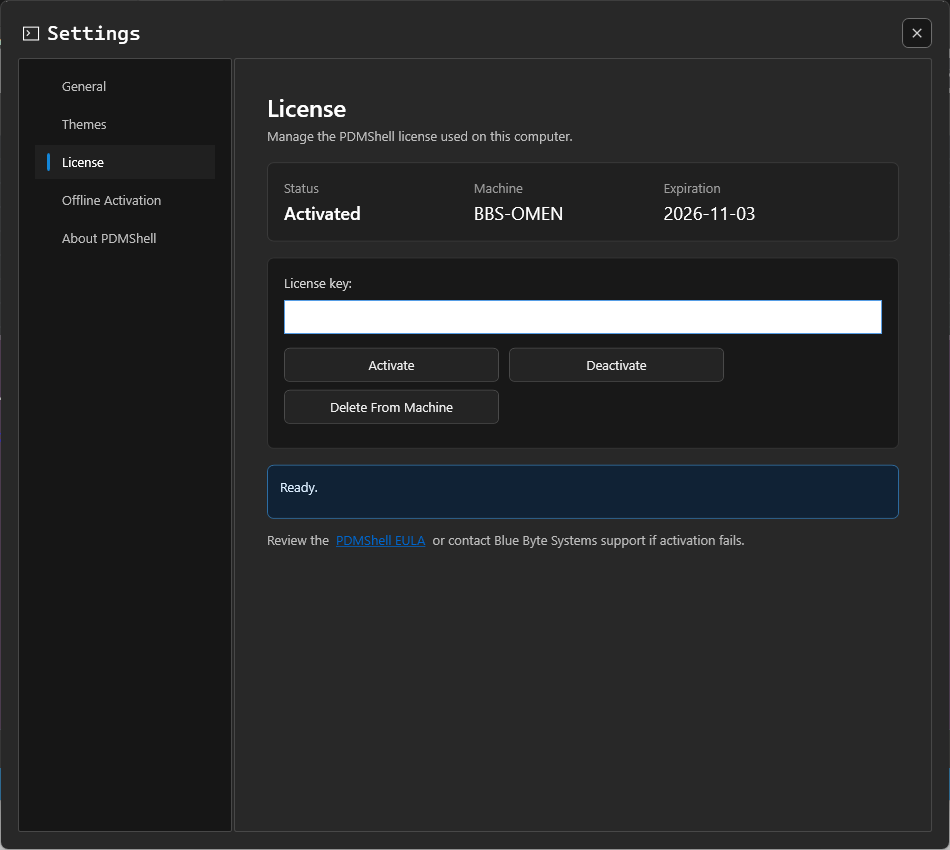
Use the License page in PDMShell settings to activate, deactivate, or remove the license stored on this computer.
Note
Regular activation requires an internet connection. If the computer is air-gapped or cannot reach the license server, use Offline Activation.
Open License Settings
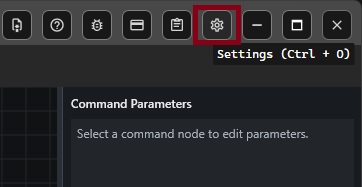
- Open PDMShell.
- Select
Settingson the toolbar or pressCtrl + O. - Select
License.
Activate A License
- Enter your PDMShell license key.
- Select
Activate. - Wait for PDMShell to verify the license.
When activation succeeds, the status changes to Activated and the expiration date is shown on the License page.
Deactivate A License
Use deactivation before moving a license to another computer.
- Open
Settings. - Select
License. - Select
Deactivate.
PDMShell contacts the license server and releases the license from the current computer.
Delete A License From This Computer
Use Delete From Machine only when you need to remove the saved license information from the current Windows user profile.
This does not contact the license server. If you plan to move the license to another computer, deactivate the license first.
Troubleshooting
- Make sure the computer has internet access.
- Confirm that the license key was entered correctly.
- If the license is already active on another computer, deactivate it from that computer first.
- If activation still fails, contact Blue Byte Systems support and include the message shown on the License page.